
Getting started
Open the editor
- In your browser, nothing to install: the demo. Your diagrams stay in the browser; Save writes a file on your computer.
- Hosted by your team: open the address they gave you. See self-hosting to run it yourself with one
docker run. - From the repository:
pnpm install, thenpnpm start, and open http://localhost:4200.
Look at a sample
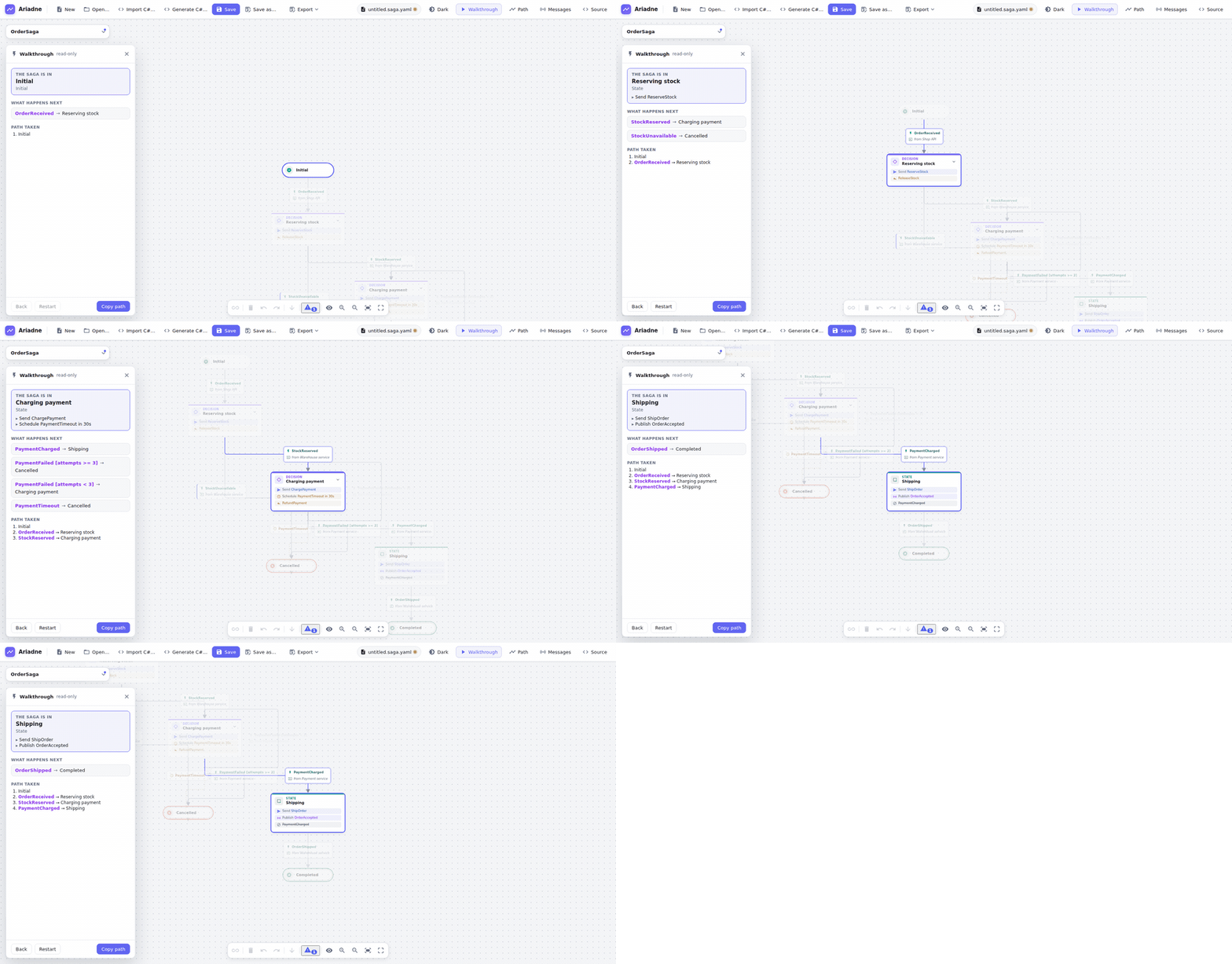
Choose New and, under "Start with a tour", the Order saga (under "Real-world sagas" there are bigger ones: the sample library). It opens as a new diagram that is not saved anywhere yet. Click a state or a transition: the inspector on the right shows what it is. Walkthrough steps through the saga event by event, Messages lists its commands and events and where they are used, and Path draws the path a saga instance took: paste the events it received (a JSON or YAML list, e.g. - OrderReceived) and the diagram shows the states visited, the transitions taken with their step numbers, and where the instance stands. A timeline under the canvas lists the same path left to right: only the states it went through and the event of each step, a loop as often as it was taken, the state it is in now emphasised. Click a state or a step to find it on the diagram. The panel chooses between On the diagram, Timeline and Both. To see it at once, open the order sample with an example path in the demo.




Draw your own
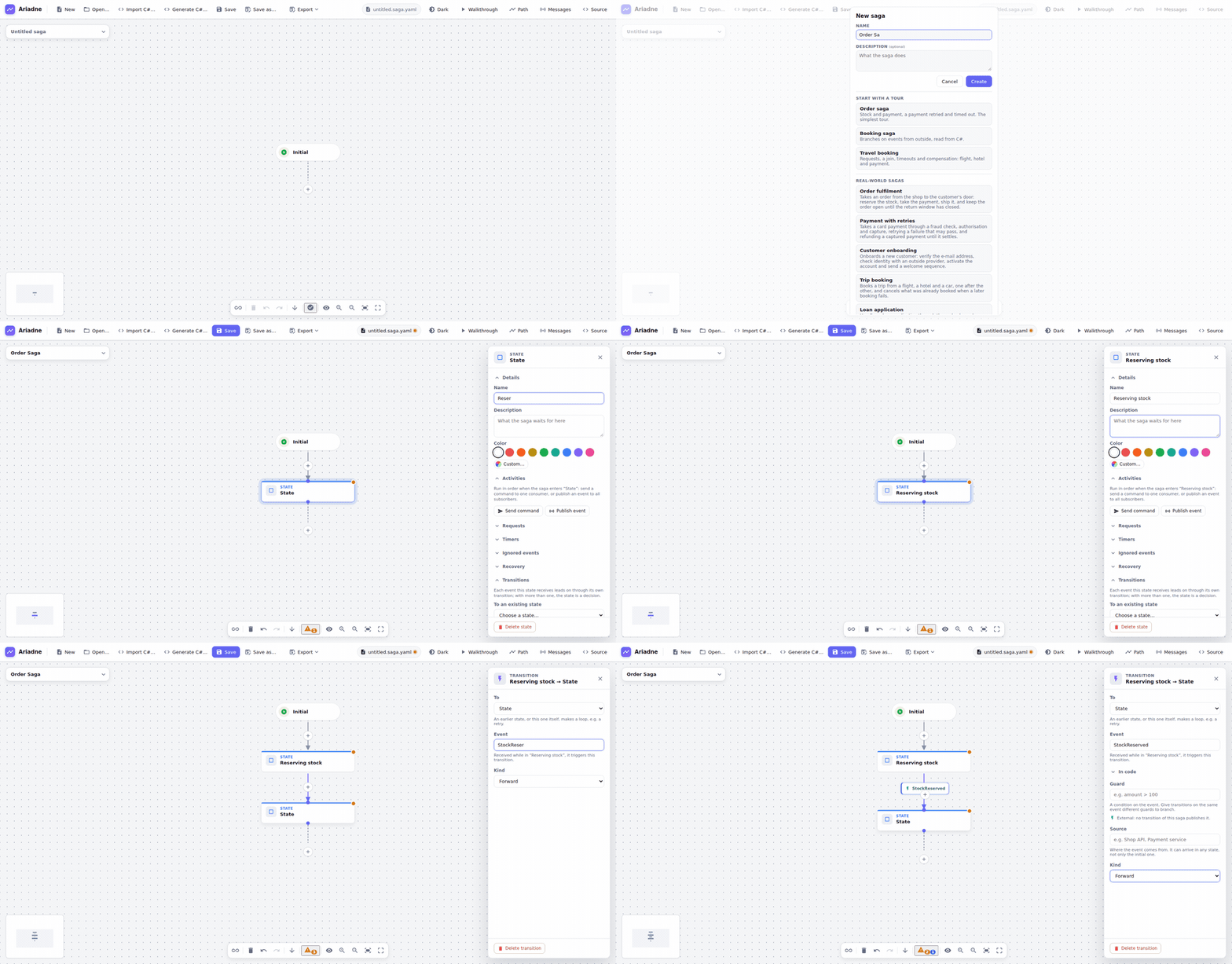
- New, give the saga a name.
- Click the + under the initial state and pick a state. Click + again to continue the path.
- To add a state into an existing path, click the + on a transition.
- Drag from a state's connector onto another state to add a transition (for a loop, a retry or a branch back).
- Select a transition and give it an event, e.g.
PaymentCharged. Select a state and add activities: the commands it sends and the events it publishes when the saga enters it.
Nothing is positioned by hand; the layout follows the structure. The layout button in the toolbox (its arrow shows the direction) chooses which way the flow runs (top to bottom, bottom to top, left to right or right to left) and how much room it gets (compact, normal or spacious). Both are saved with the diagram and undone like any edit.
Save
Save (Ctrl+S) writes a *.saga.yaml file. In Chrome and Edge it overwrites the file you opened; in other browsers it downloads a copy. The file is plain YAML, made for code review: keys are always in the same order, so a change shows up as a small diff. Put it in your repository next to the saga's code.
If the browser crashes or the tab is closed before you save, the editor keeps your unsaved changes in the browser (a second after your last edit) and offers them back the next time you open it: Restore opens them as an unsaved diagram, Discard throws them away. The draft is removed as soon as you save or discard your changes. It is not used in VS Code, which keeps unsaved documents itself.
The Source button shows the YAML next to the diagram. You can edit either side; a mistake in the text is shown with its line and column and the diagram keeps its last valid state.
