
User guide
How to use Elysion (a short German version: Benutzerhandbuch): boards and rooms, working together on a canvas, sharing, and running a workshop with the timer and the dot voting. To run Elysion first see self-hosting or the demo in the README. The screenshots are from the demo stack with two people, guest and dev, working on a retrospective board.
Log in
Open Elysion in the browser (http://localhost in the demo). You are sent to the login page of the identity provider (Keycloak); the demo has the users dev, dev1 and dev2, and the password is the username. Somebody has to log in once before they can be added to a board or a room by their e-mail address.
Boards and rooms
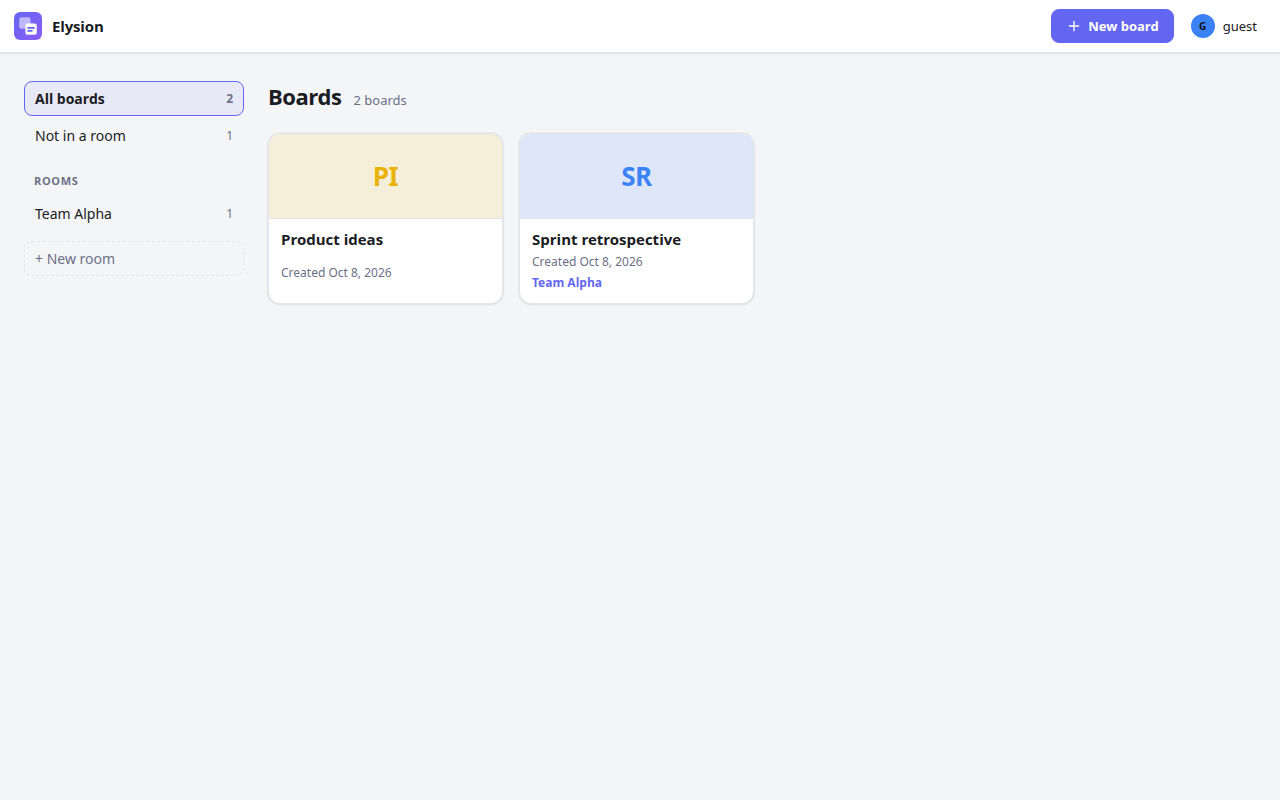
The start page lists your boards: the ones you made and the ones shared with you. A card shows a small picture of the board (made when someone who can edit it last left it; the board's initials until then), its name and the date it was made; the room it is in is shown as a small label.
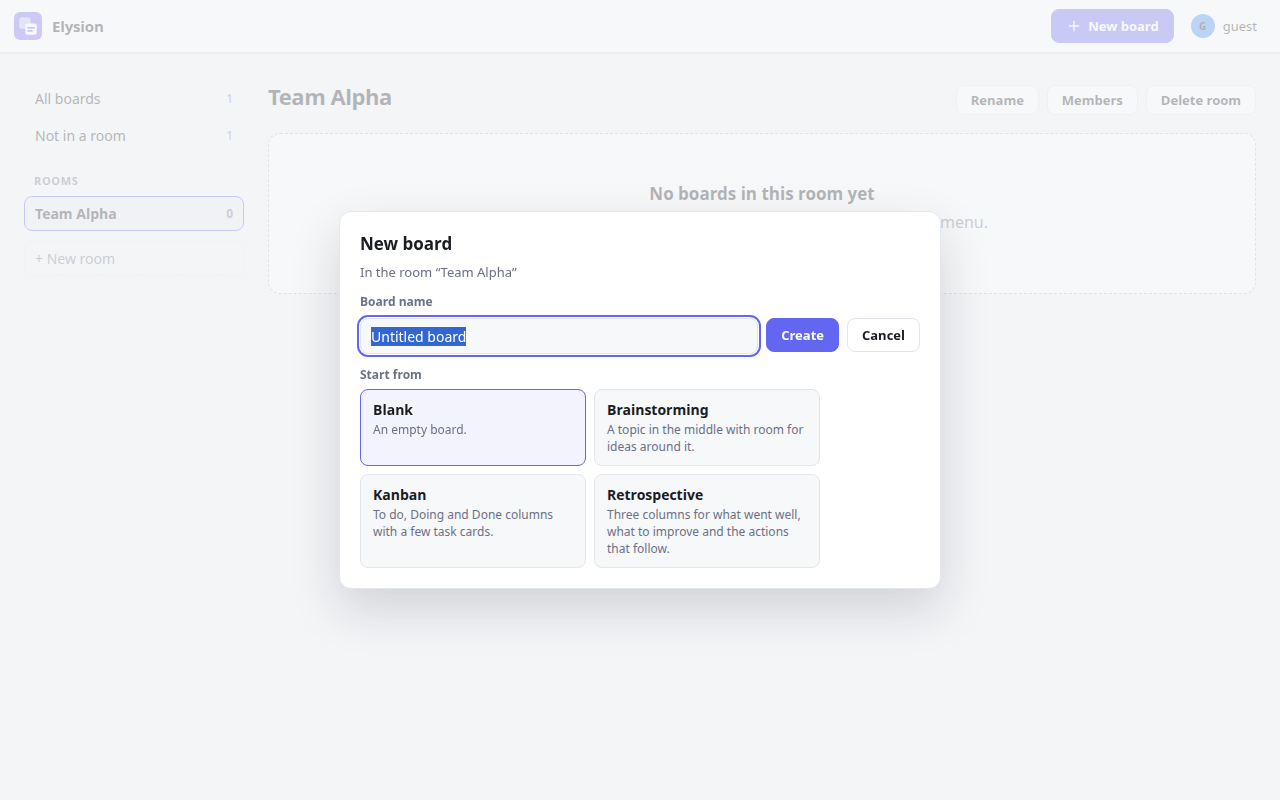
- New board opens a form with the name and Start from: a blank board or a template (Brainstorming, Kanban, Retrospective, and your own, see Templates).
- Search (press
/to jump to it) keeps the boards whose name contains what you type; the search is in the address, so a reload keeps it. Sort by orders the list by newest, name or last opened, and the browser remembers your choice. - The star on a card (or in the top bar of a board) makes the board a favorite: it shows up under Favorites on the left and comes first in the list of all boards. Stars are yours alone.
- On a card, the icons in the corner move the board to a room, duplicate it and delete it (delete asks first and cannot be undone).
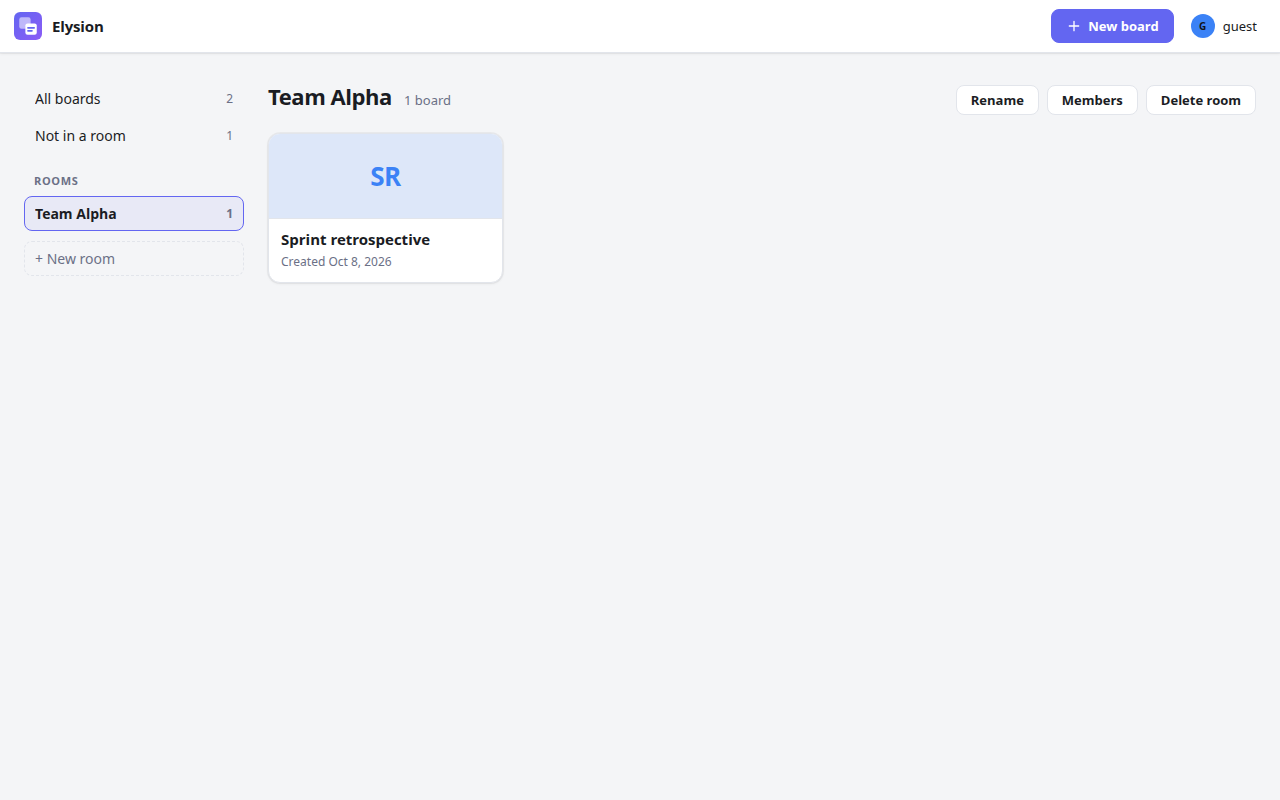
- Rooms (the list on the left) are shared spaces for the boards of a team. + New room makes one; the room's page has Rename, Members and Delete room. Everybody in a room can open its boards, with the role they have in the room (owner, editor or viewer); a board can also be shared with people on its own. Drag a card onto a room, or use the move icon, to put a board in it.
The board
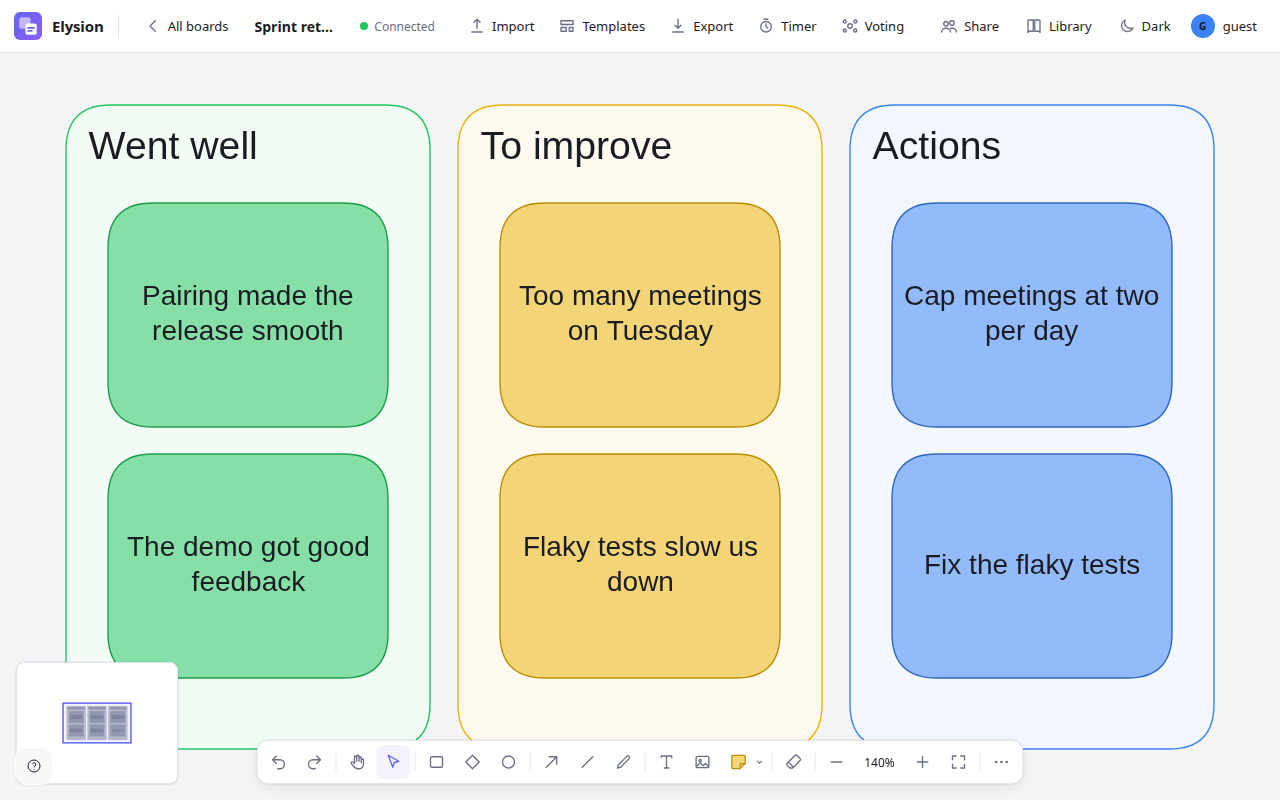
A board is an endless canvas (drawn by Excalidraw) that everybody on it edits at the same time. Connected in the top bar means your changes are being sent; if the connection drops, Elysion reconnects by itself and merges what happened meanwhile.
Top bar, from the left: All boards, the board's name (click to rename), the connection state, Import (an .excalidraw file into this board), Templates, Export, Timer, Voting, then Share, the people on the board, Library, the theme and your account menu.
The toolbar at the bottom has undo and redo, the hand (move the view), the selection tool, rectangle, diamond, ellipse, arrow, line, freehand drawing, text, the sticky note, the eraser, and the zoom controls (zoom out, the zoom level, zoom in, fit the board in the window), and Insert image. An image is a PNG, JPEG, GIF, WebP or SVG file of up to 4 MB (a board holds up to 200); choose it, paste it or drop it on the board. Several files dropped together are laid out in a row at the drop point (a paste puts them in the middle of what you see), each at most half as high as your view and with its proportions kept, and they are selected so that you can move them together. An SVG is turned into a picture (PNG) first. The others see the images a moment later, and they are still there after a reload. A viewer sees the images but cannot add any. A file that is too large, of another type or one too many is refused with a message that names it and does not stay on the board. The ⋯ button opens the canvas menu with the grid settings, among others: Show grid (a quiet dot grid in the background; Ctrl+' toggles it), Snap to grid (elements line up on the grid points, whether the dots are shown or not), Snap to objects (while you drag or resize, an element snaps to the edges and centers of the others, with red guide lines) and the grid size. The grid and the guides are on by default and belong to the board: everybody on it sees the same ones, and only editors change them. The small map at the bottom left shows the whole board and the part you see; click or drag in it to move there.
Sticky notes
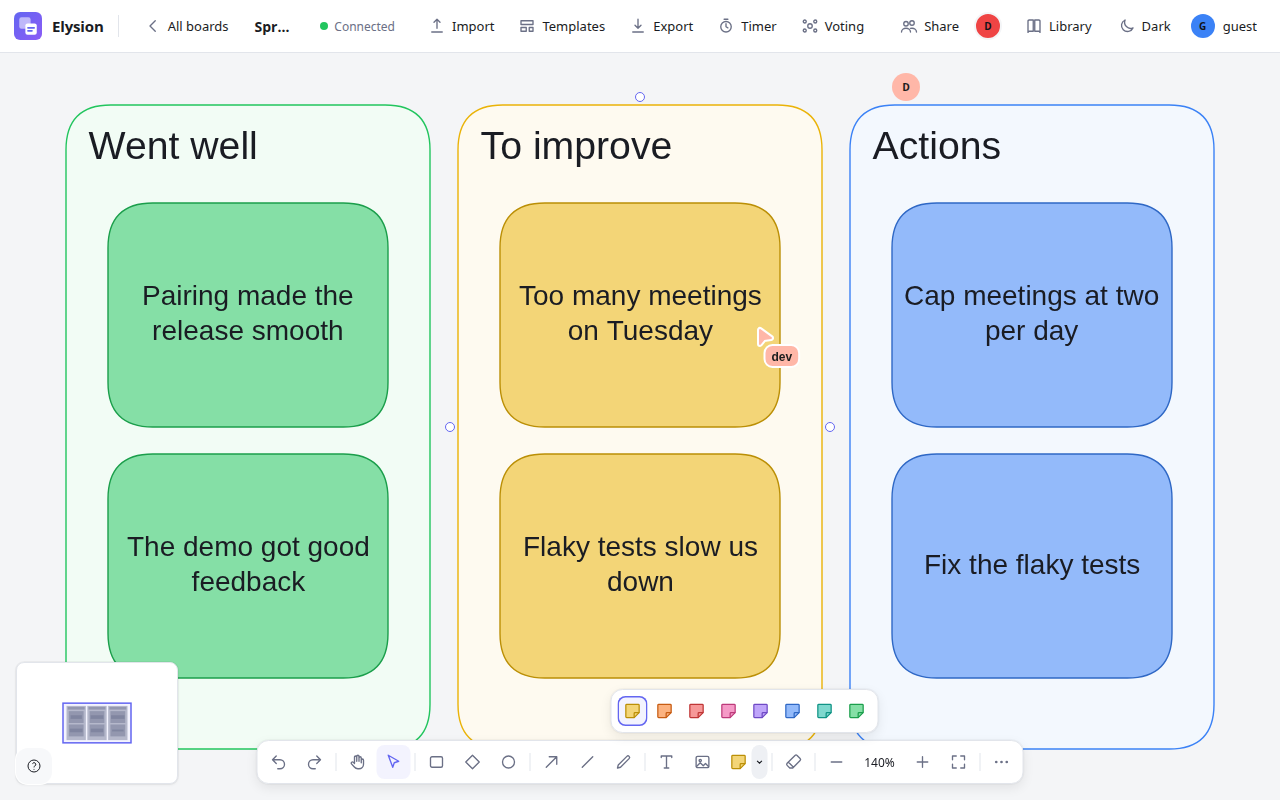
The sticky note button makes a note in the current color (or press N). The small arrow next to it opens the eight colors: yellow, orange, red, pink, purple, blue, teal and green. Double-click a note to write in it. Notes, shapes and arrows work as in Excalidraw: drag to move, drag the handles to resize, and the property panel on the left appears when something is selected.
Connecting things
Hover a shape to see its connection points and drag from one to another shape to draw an arrow that stays attached when the shapes move. Select exactly two shapes and a Connect button appears that joins them.
Seeing each other
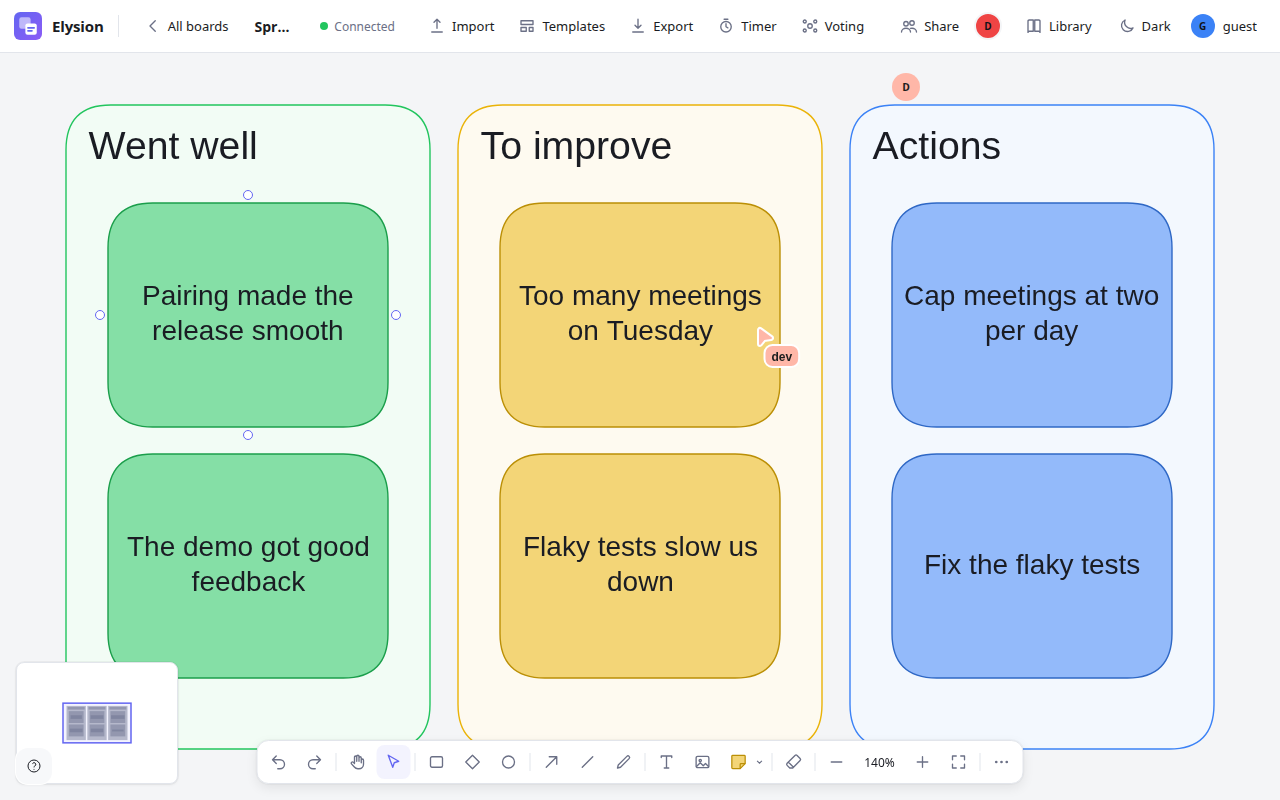
Everybody on the board has a color. You see their cursor with their name, and their initial next to Share in the top bar. Changes by different people are merged without conflicts, even when two people edit the same board at the same moment.
When the connection is lost
If the connection to the board is lost, keep working: the status in the top bar says Offline, and after a few seconds a bar tells you that your changes are saved on this device and sent when the connection is back. If you close or reload the tab in the meantime they are still there: open the board again when you are online and they are sent. When the connection is back the bar says how many changes were sent; two people who changed the same thing are merged without a question. After five minutes the bar offers Download a copy of the board as a file, if you would rather keep one yourself. The copy on your device is removed when you log out; on a shared computer, log out when you are done.
Light and dark
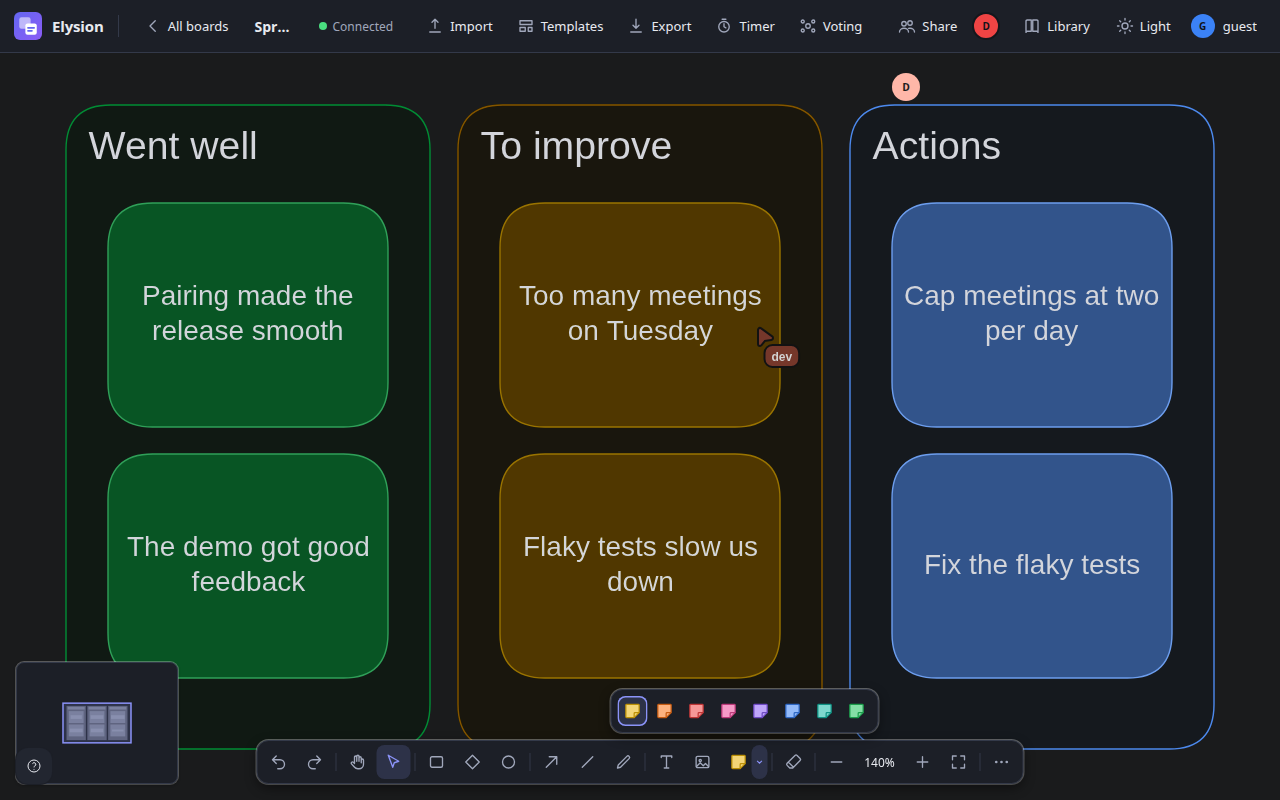
Dark / Light in the top bar switches the theme. Without a choice Elysion follows your system setting. The choice is kept in your browser. In the dark theme the canvas is darkened and sticky notes are drawn in the colors of the dark palette (a yellow note stays a yellow note, in a deep shade). The color a note has in the board does not change: everybody else sees it in their own theme.
The shape library
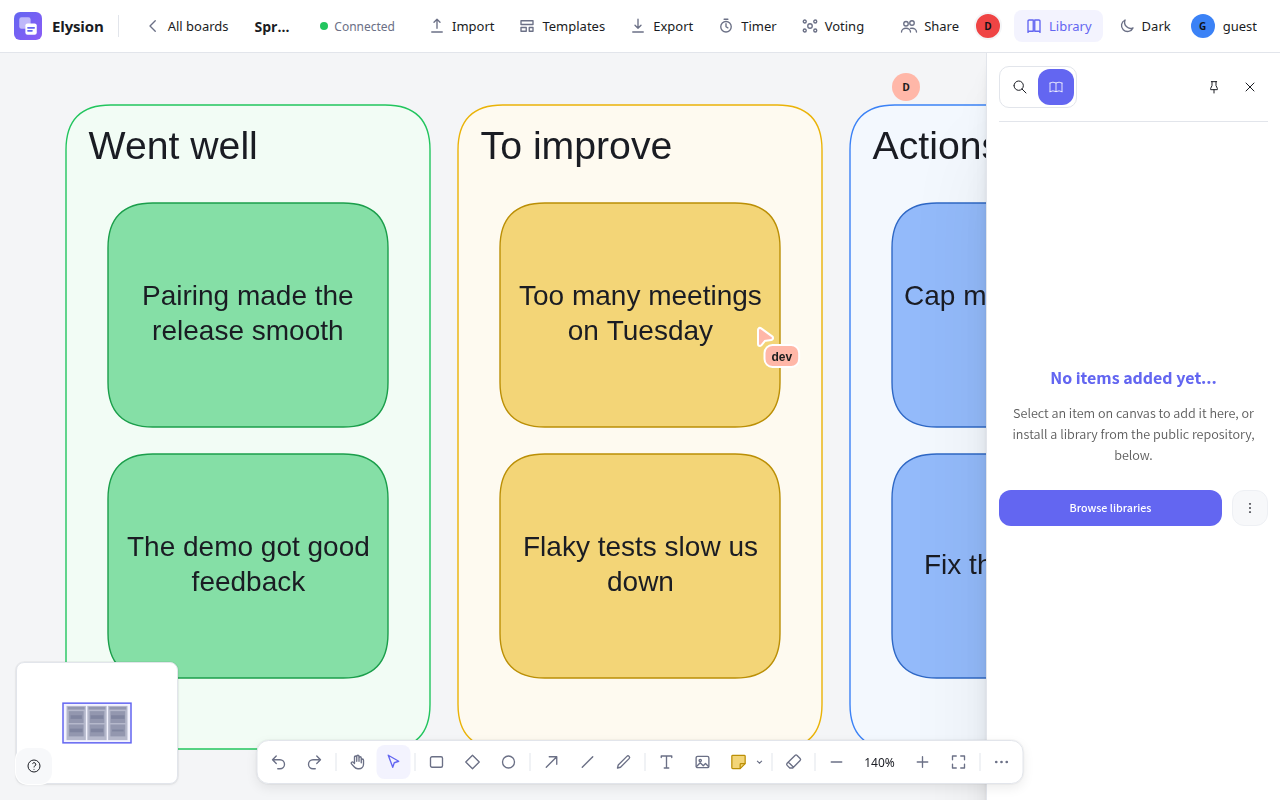
Library opens Excalidraw's library next to the canvas. It starts empty: select something on the board to add it, and click an item later to place it again, or press Browse libraries to install a public one.
Sharing a board
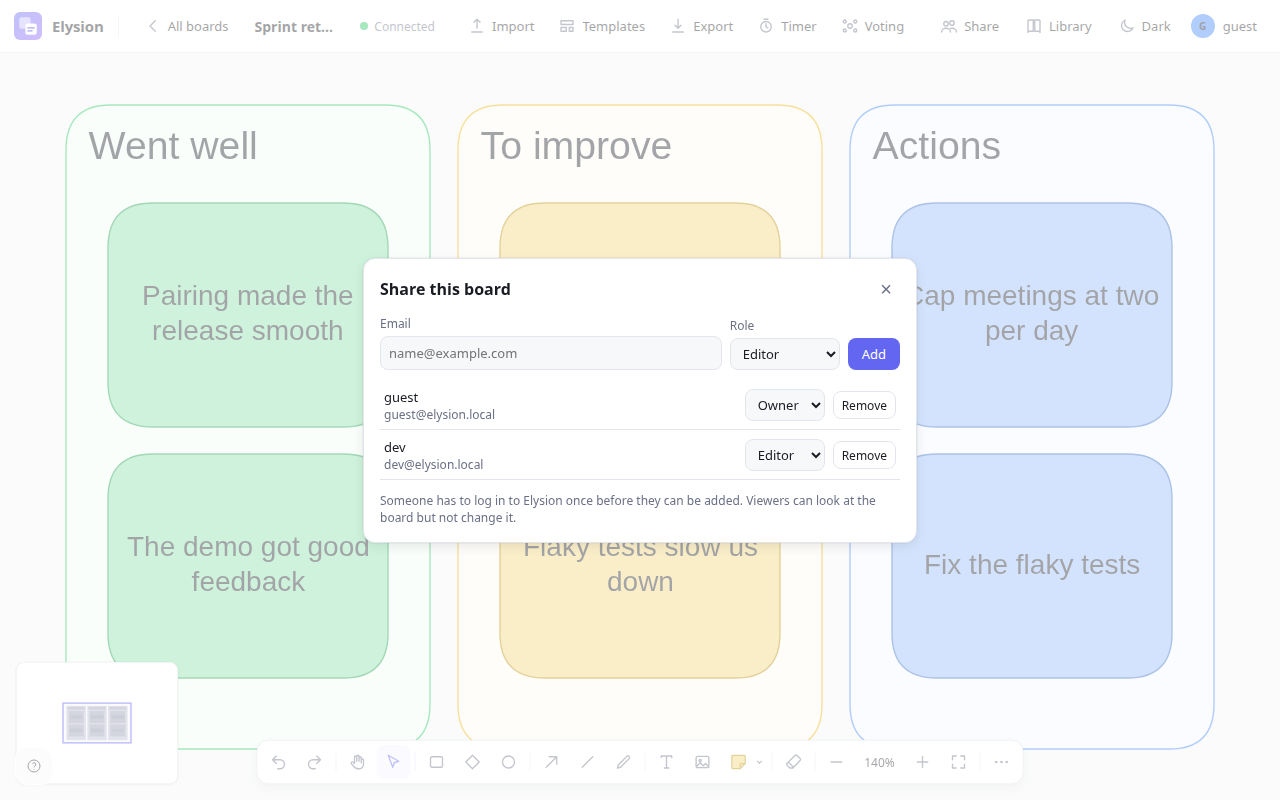
Share (for the owner) lists who has access. Start typing a name or an e-mail address: the people who have logged in to Elysion and match are listed (use the arrow keys and Enter, or click, to choose one). Choose a role and press Add. A full e-mail address that matches nobody can still be added if that person has logged in once:
| Role | Can |
|---|---|
| Owner | Everything, including sharing and deleting the board |
| Editor | Change the board, use the timer and the voting, add templates |
| Viewer | Look at the board, follow the others live and vote in a voting; the server refuses other changes |
Invite with a link (below the list) is for people who are not in Elysion yet or whose e-mail you do not have. Choose a role (Viewer or Editor), how long the link works (1 hour to 30 days) and, if you like, how often it may be used, then Create link and Copy it. The address is shown only once, right after it was made. Whoever opens it signs in, joins with the link's role (somebody who has a higher role keeps it) and lands on the board. The list shows each active link with its expiry and how often it was used; Revoke ends it at once. A room has the same section and gives access to all its boards.
A room can also be shared with a group (for example a department from your company's sign-in): in the room's Members window, search the Groups section by name, choose a group, give it a role and press Add. Everybody in the group gets that role on every board in the room. The window of a board that is in a room tells you who else has access through the room.
History (at the bottom of the window, for owners) shows the last 20 changes of the board or room: who gave whom which role, who took access away, which links were made, revoked or used. Open it to load it.
Change a role in the list, or Remove somebody. A person has to have logged in to Elysion once before they can be added. For a whole team use a room instead: its members have access to all its boards.
Administration
People who administer the instance (they have the role elysion-admin at the identity provider) find Administration in the menu under their name. It shows names, numbers and roles, never what is on a board.
- Overview: how many people, groups, rooms and boards there are, and which identity provider people sign in with.
- Users: search by name or email; a name opens the rooms and boards the person has directly, with their roles.
- Groups: a local group is made and kept here (New group, Rename, add and remove members). A linked group belongs to the identity provider: Link a local group to a group of the provider by its id and its members then follow the provider as each person signs in; Unlink makes it local again and keeps the members. Delete says how many rooms lose the role the group gave them. If your operator switched on Microsoft Graph the page says when the groups were last read from the directory; a linked group then also shows the people waiting for their first sign-in (they join as soon as they sign in with that address).
- Rooms: name, owner and numbers; no board names.
- Deactivate a person: open them in Users and choose Deactivate…. They are refused everywhere from then on, are not offered when somebody is added, and stay in the member lists as deactivated. Elysion cannot switch the account off at the identity provider: do that there as well, otherwise the person can still sign in there. Reactivate brings everything back.
- Hand over: for a deactivated person who owns boards or rooms, Hand over gives all of them to somebody else, who becomes their owner; the person who left keeps nothing, and you get no role either.
- Audit: who gave or took away access, newest first, with the person who did it. Click a board, room, group or person in a row to filter by it, or choose a time span. An entry holds ids, roles and counts, never what is on a board. Entries are kept for a year (
AUDIT_RETENTION_DAYS).
Everybody else who types the address sees "You are not an administrator".
Templates
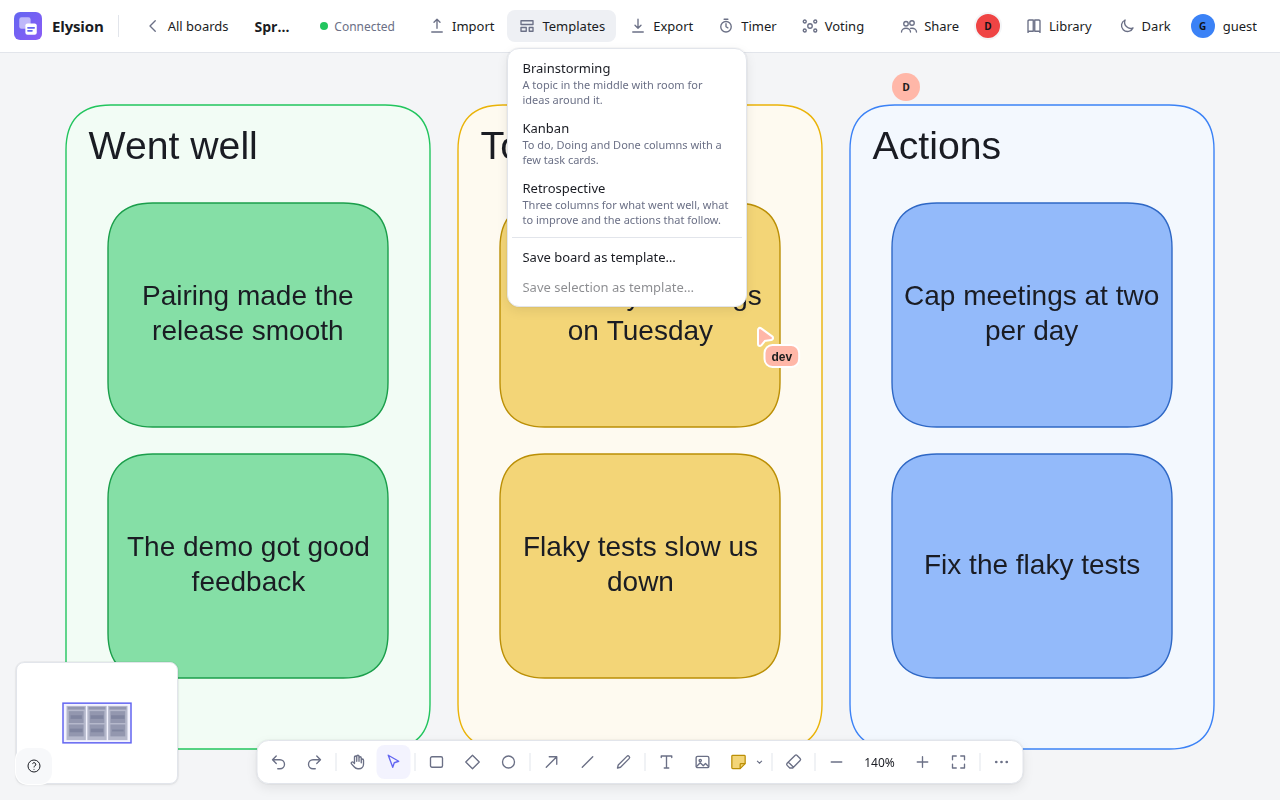
Templates adds a template to the board you have open: Brainstorming (a topic in the middle), Kanban (To do, Doing, Done), Retrospective (went well, to improve, actions). Save board as template… and Save selection as template… keep your own for later; they show in this menu and in the New board form. Viewers do not see the menu.
Export and import
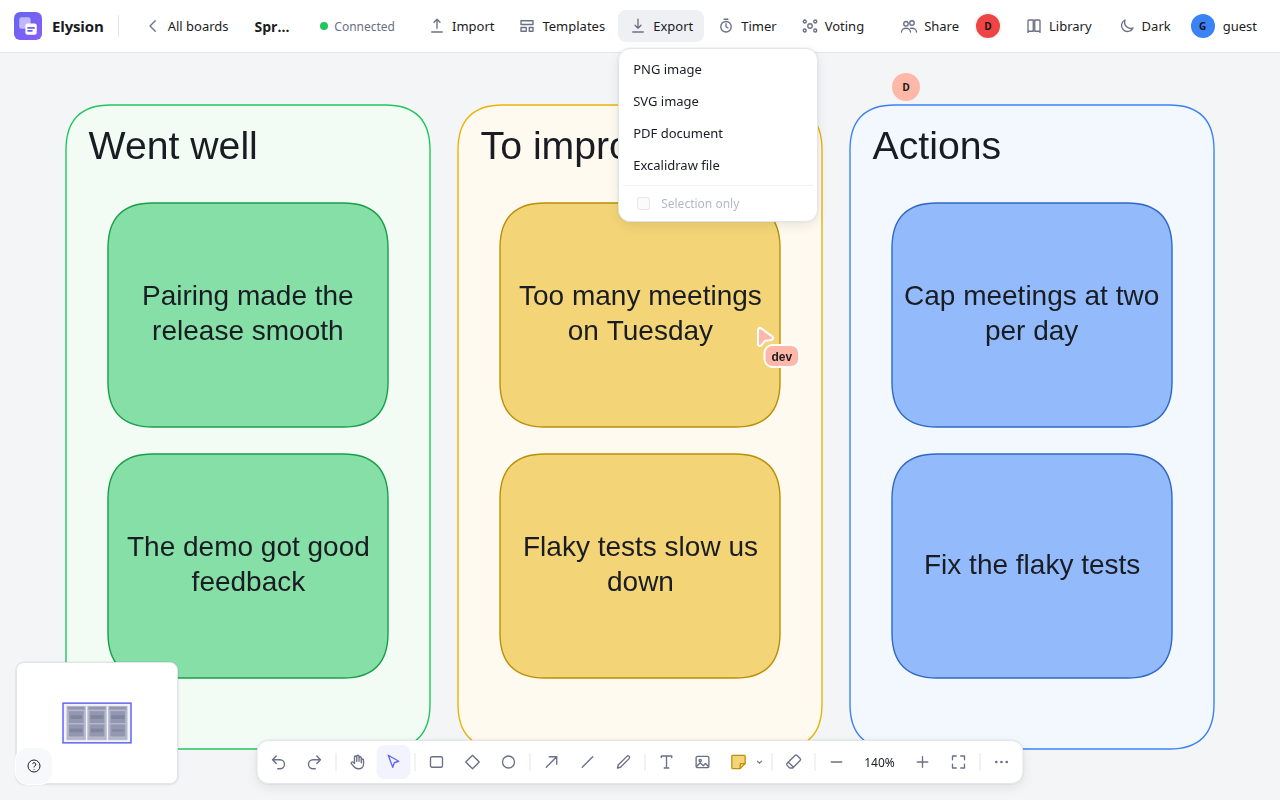
Export saves the board as a PNG or SVG image, a PDF document or an Excalidraw file (.excalidraw). With Selection only (when something is selected) only that part is exported.
The Options below the formats are remembered in your browser: for a PDF, whether a board that has frames makes one page per frame (in the order of the frames' names when they are numbered, like the pages of an imported PDF, otherwise from the top left to the bottom right; each page has the frame's name as its title and as a bookmark) or puts the whole board on one page, the page size (the size of the content, A4 or Letter) and the orientation; for every format the colors (as on the screen, light or dark), the background (off leaves it transparent) and, for a PNG, the scale (1×, 2× or 3×). With Selection only and frames selected, only those frames become pages. Images on the board are part of the file. Import takes an .excalidraw file into the board you have open. (when something is selected) only that part is exported. Import takes an .excalidraw file into the board you have open (it replaces what is on the board, and asks first) or a PDF (below).
Export a room as one PDF
In a room's page, Export room makes one PDF of all the boards you can read in the room: for each board a title page with its name (and a note when it is empty or could not be loaded), then its pages as the Export menu would make them (one per frame, with your remembered options). Each board is opened in turn out of sight, so it takes a few seconds per board; the progress is shown and can be canceled. A room of more than 20 boards asks first and says how long it may take.
Bring a PDF onto the board
Choose a .pdf file with Import, or drop one on the board. A window shows the pages as small pictures: leave out the pages you do not need (all of them are chosen at first, the first 50 of a longer PDF can be imported), choose how sharp they should be (1,600 pixels wide is a good size for a screen) and click Import. Each page becomes a picture in a frame named Page 1, Page 2, and so on; the frames sit in a grid in the middle of what you see, the others see them a moment later, and Undo takes all of them off again in one step. The PDF is read in your browser and never sent to a server; only the pictures of the pages are stored. A PDF that is protected by a password, larger than 10 MB or not a PDF is refused with a message, and the progress of a long PDF is shown per page and can be canceled.
Running a workshop
The timer and the voting are for the people who lead a session. Everybody on the board sees them; owners and editors start and end them, and everybody, viewers too, votes.
The timer
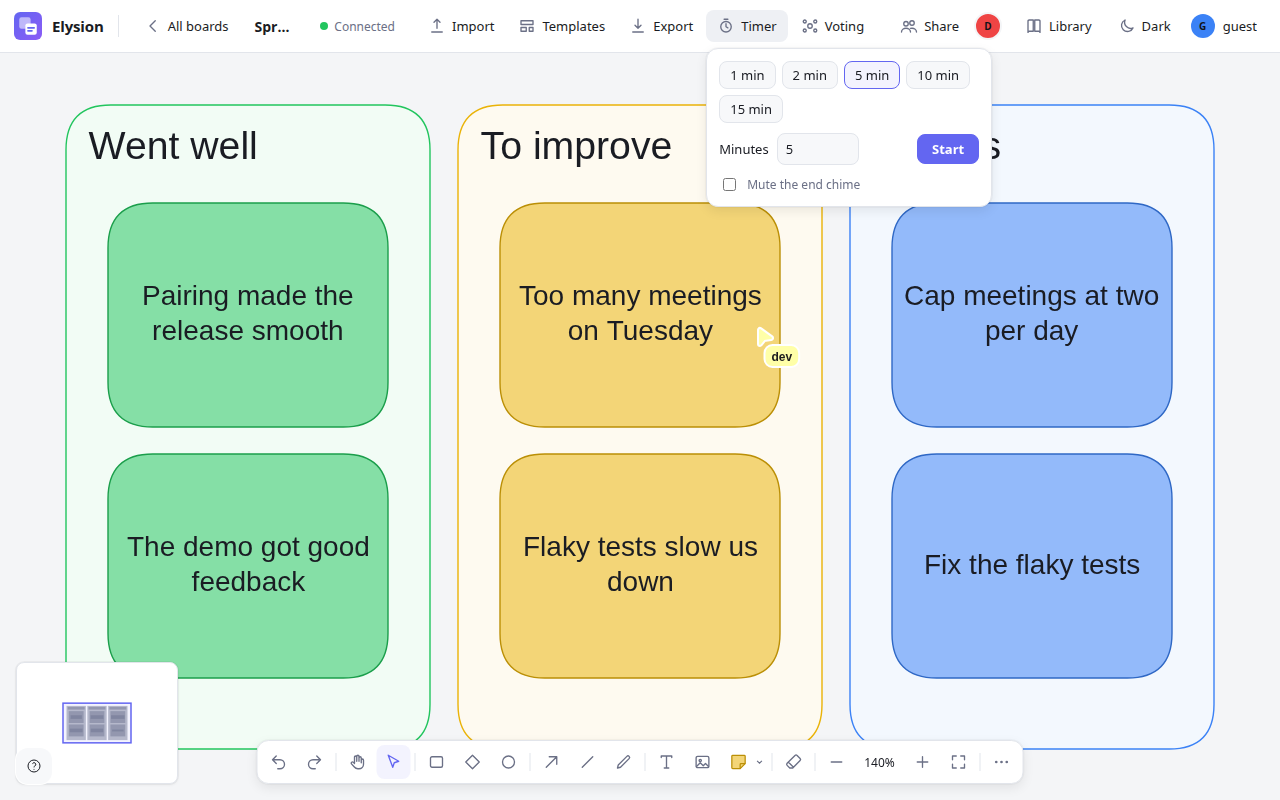
Timer opens a menu: pick 1, 2, 5, 10 or 15 minutes (or type a number) and press Start. The countdown shows in the top bar for everybody on the board, and a short chime sounds when time is up (Mute the end chime if you do not want it).
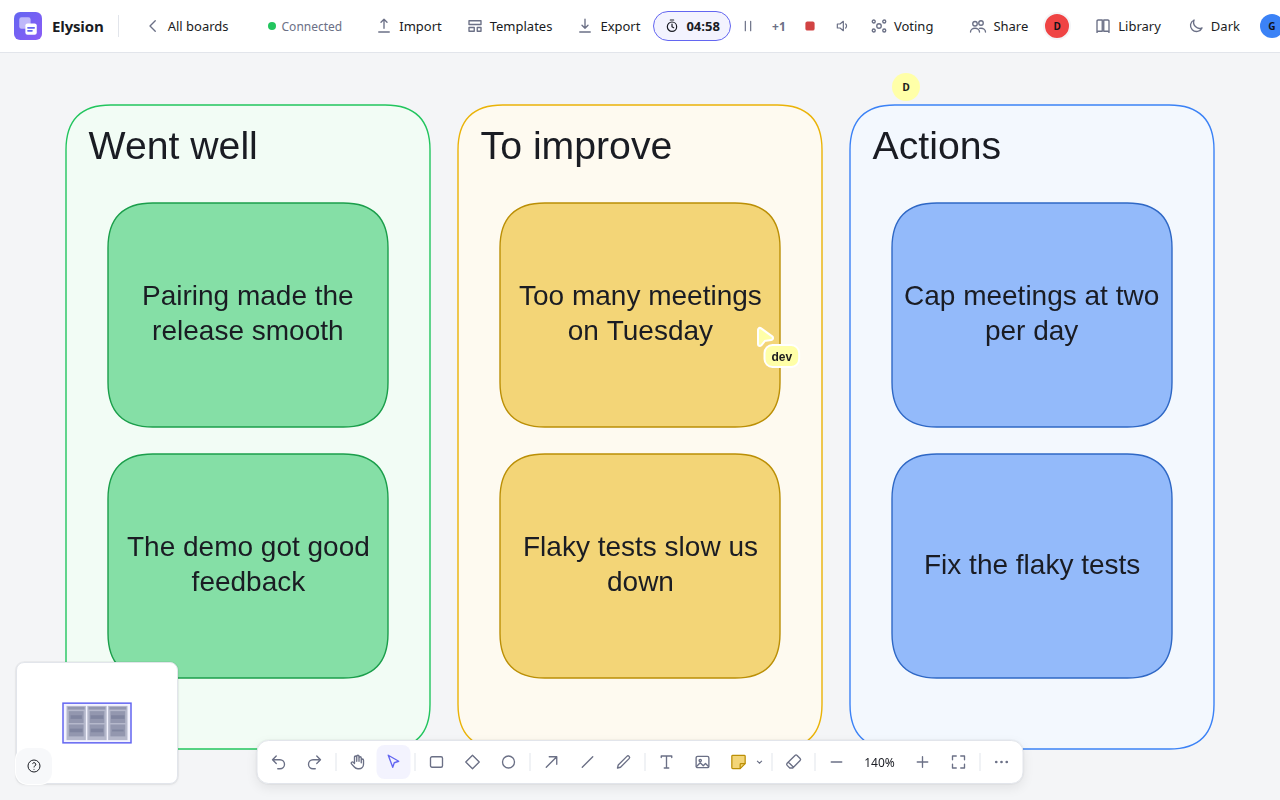
While it runs the top bar has pause (and resume), +1 to add a minute, stop (the red square) and the chime switch. The timer is part of the board, so somebody who joins later or reloads sees the time that is left.
Dot voting
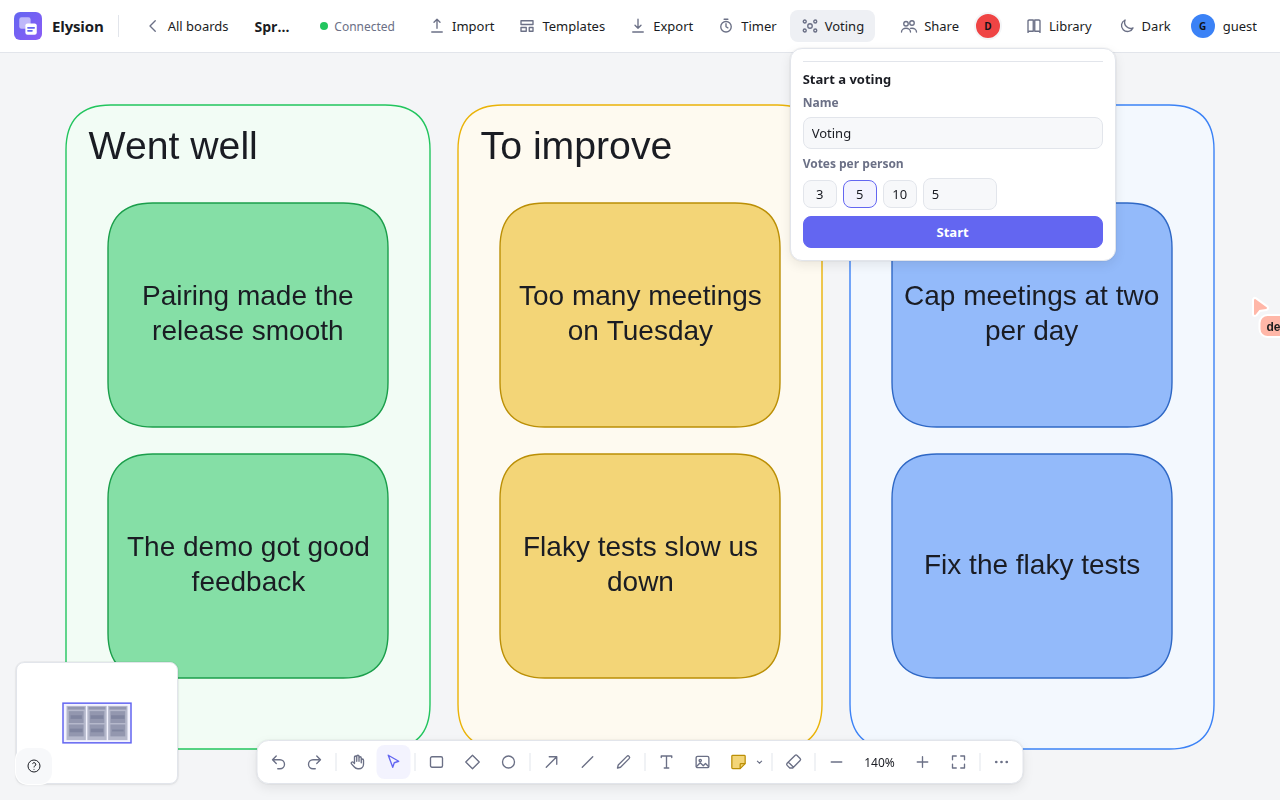
Voting opens a form: a name, the votes per person (3, 5, 10 or your own number) and, if you want, Show who voted for what in the result (off: the result shows counts only). Press Start.
While the voting is open, click an element (a sticky note, a shape) to give it a vote. Small dots at its corner are your own votes; click a dot to take that vote back. The button in the top bar and a hint above the toolbar say how many votes you have left.
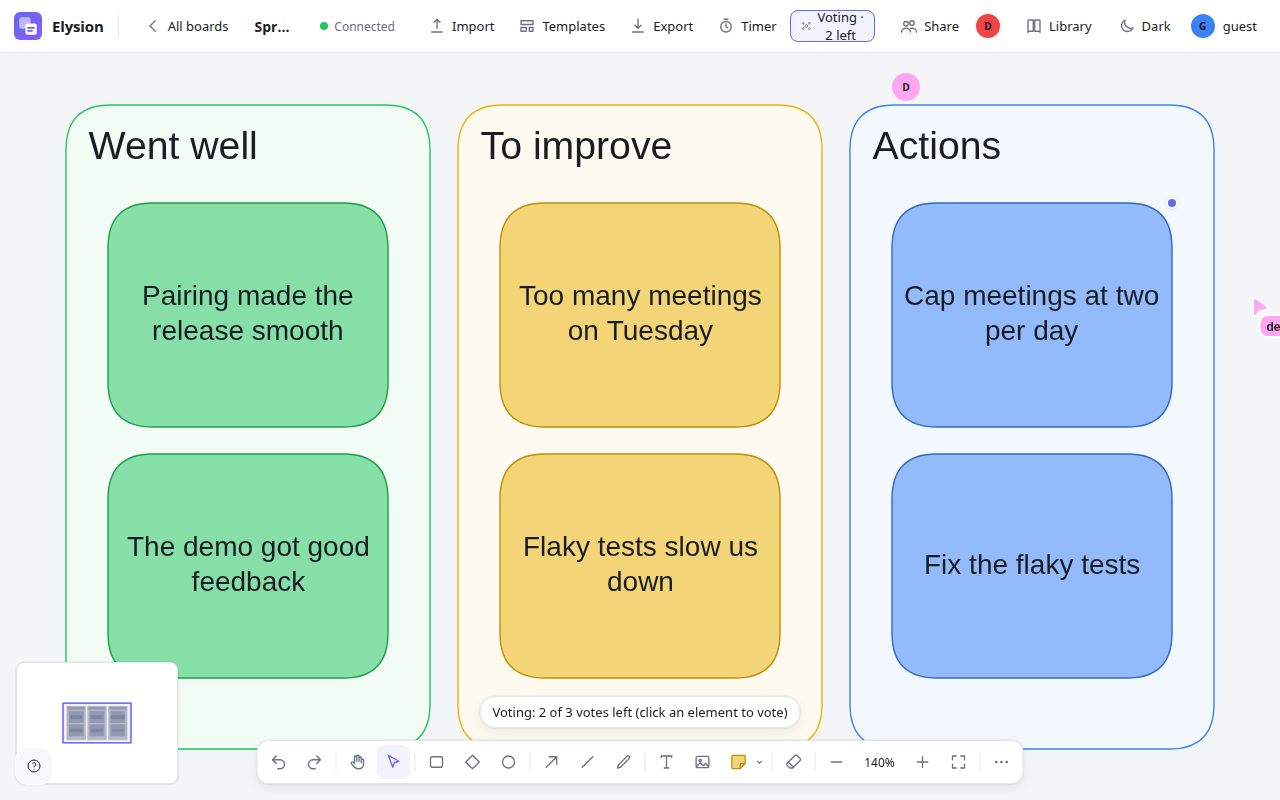
The voting ends when the facilitator presses End voting, or by itself when everybody who is on the board and may vote has used all their votes.
The results open for everybody in a small window on the right: the elements that got votes, the most voted first, with the number of votes. Click a result to jump to the element. The window can be moved by its title and does not block the board.
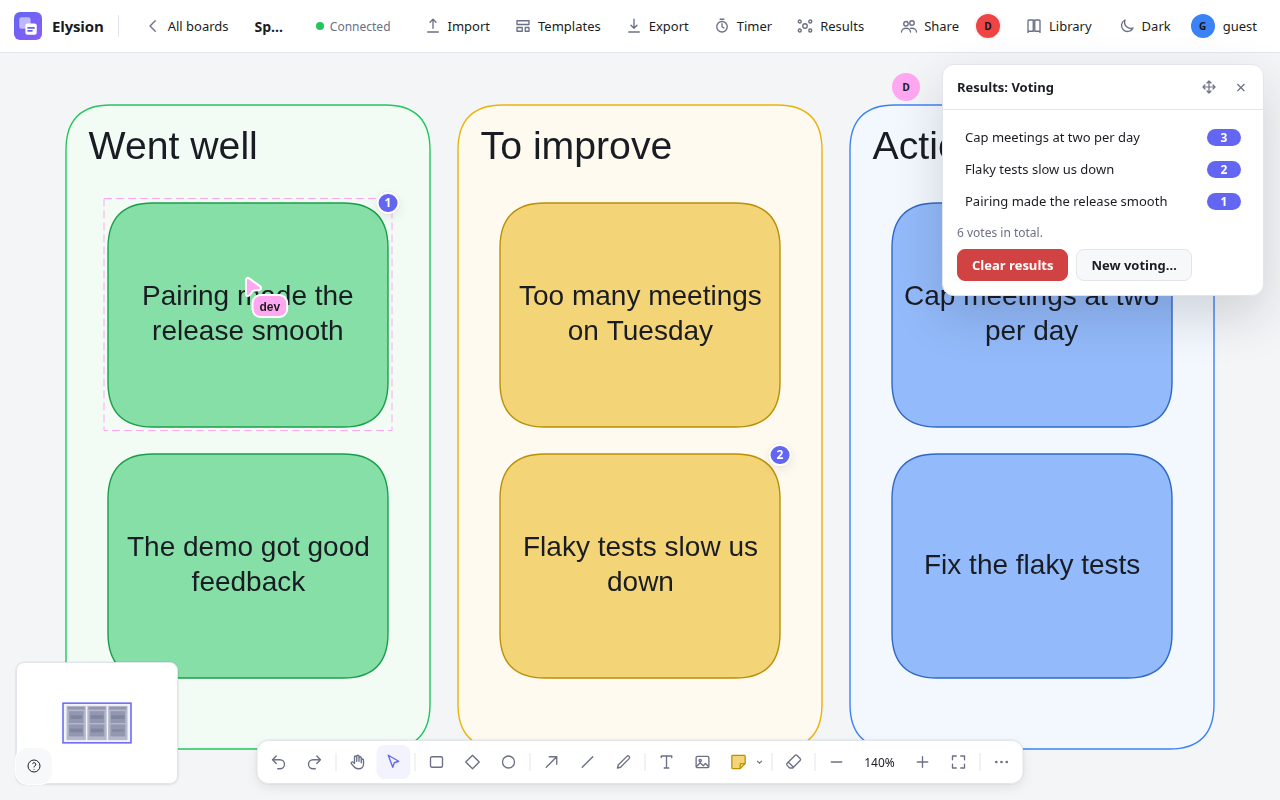
Owners and editors can Clear results (the second press confirms) or start New voting…. Somebody who joins afterwards opens the results with the Results button.
While a voting is open you only see your own votes, never anybody else's, and the server keeps the others' votes from you. The results show counts, and names only when the voting was started as named. Viewers vote too; only owners and editors start, end and clear a voting.
Comments
The Comments button in the toolbar (or the key C, when two elements are not selected to be connected) opens the comments on the right.
- Click an element or an empty spot of the board: the comment is attached to it. A comment on an element follows the element when it moves; a comment on a spot stays where it is.
- Write the comment (up to 2,000 characters) and press Comment. Ctrl+Enter sends too. Type @ to mention someone: the list offers the members of the board (the owner of the board sees all of them first, and everybody gets the people who commented before; after two letters the list also finds anybody who has signed in to Elysion by name or email). A mention is shown as the person's name. Nobody is notified yet.
- A small marker with the number of messages sits on the element. Click it to open the thread, reply, and Resolve it when it is settled (Reopen brings it back). Open threads are listed first, resolved ones after them.
- Delete removes one of your own messages; the owner of the board can delete any. A thread goes with its last message.
Viewers can comment (it is the one thing they can do on a board). The comments belong to the board and are saved with it; they do not appear in a PNG, an SVG or an .excalidraw export, and Ctrl+Z does not undo them. To put them in a PDF, choose Comments in a PDF in the Export menu: they are added as text pages at the end, the open threads first. The option is off by default. Note that who wrote a message is a rule of the interface: it keeps people from deleting each other's messages, but anybody with access to the board's data could write as someone else.
Tips
- Zoom to fit (the last zoom button) when you are lost; the map at the bottom left shows where you are.
- Duplicate a board from its card to start the next session from the same layout.
- Use a room per team and put the team's boards in it, then add people once, to the room.
- Keep the timer and the voting for the session's leader; give everybody else the Editor role, and people who only follow, Viewer.